Home > User Interface > Results Processing > Fatigue Analysis > Fatigue Analysis Results > Displaying fatigue computation results
Displaying fatigue results
Once the fatigue computation are finished, right click on the fatigue item to open the contextual menu. Select the Display fatigue results item and select which kind of data (text or database) will be used.
A dialog box will open, prompting you to select a file. Click on the browse button (here framed in red) to select the result file from which you want to display the fatigue. Validate with the OK button.

Text file
For a text file, you should use the files ending with _Results_Total.txt for a display of total results or _Results_Analyses.txt for a display detailed by analysis.
Database file
For a Database file, you should use the file with a .db extension.
Results display
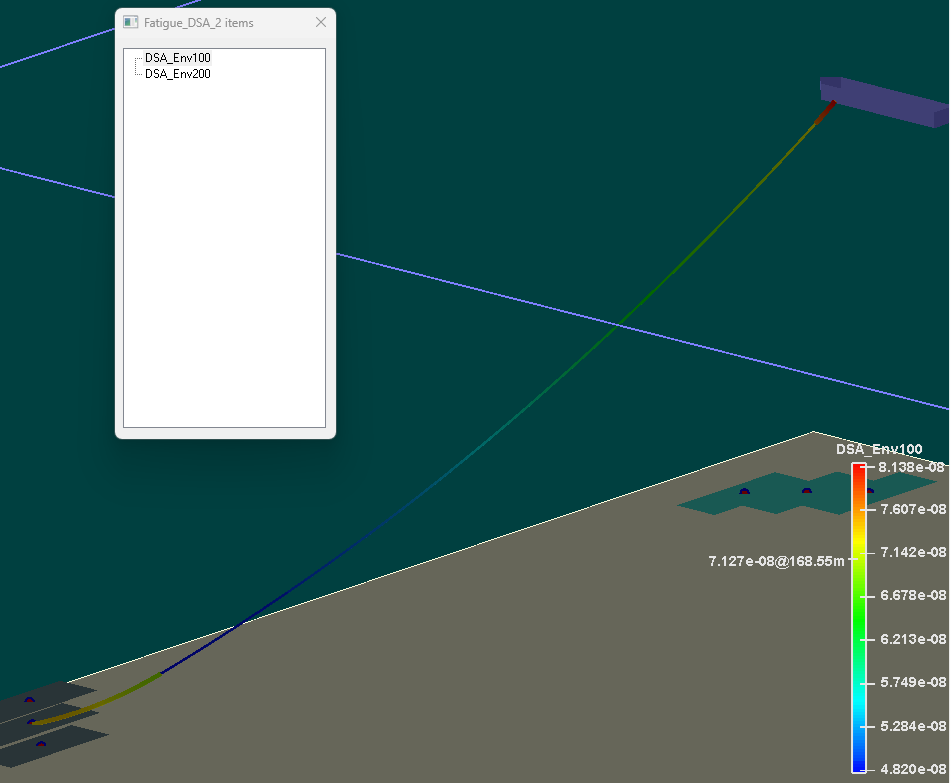
The line segments colors are modified according to the fatigue values computed in the fatigue study. 3D display is forced. The fatigue value of a specific section (and its abscissa) can be displayed by hovering over it with the mouse: the value@abscissa is shown on the left of the color scale.
A dialog box named after the fatigue analysis lists the available load cases. You can choose from the list the load case results you want to display.
For total damage, only the Total damage item will be available
Deactivate the results display
To switch back to the original display, close the dialog box listing the available cases.
