Home > User Interface > Overview > Realistic 3D View Window
Realistic 3D view window
This window can be opened by clicking on the  toolbar button. The realistic 3d view will be applied to the active view, whether it is a model or a simulation.
This window provides a realistic 3D view of all the active objects contained in your model or your simulation. Objects cannot be directly added to this view, only through the standard 3D view.
When opening the realistic 3D view, the zoom level will be initialized with the zoom level of the standard 3D view.
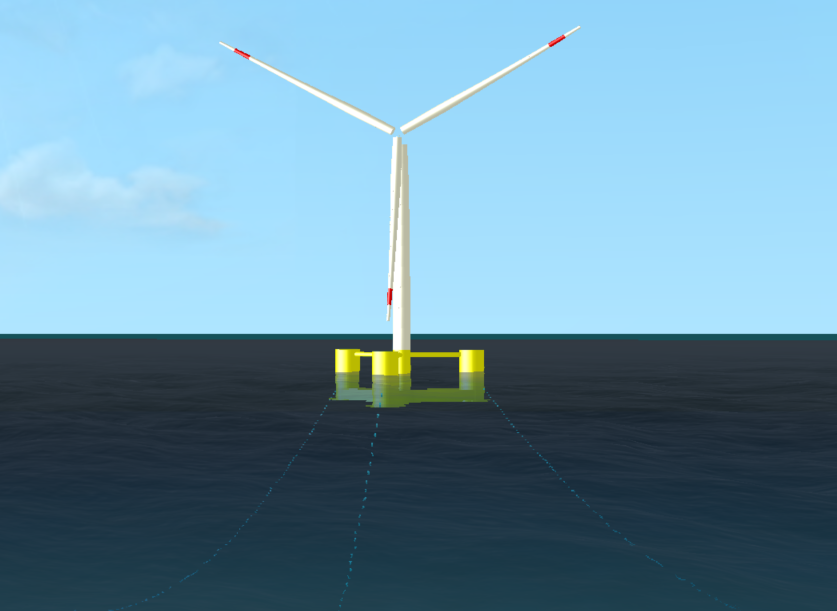
Figure 1 : VolturnUS 15 MW view.
-
Adjusting the viewpoint: The realistic 3D view window allows to adjust the viewpoint, by using the CTRL key and the mouse buttons, as follows :
-
Translate the viewpoint: Hold on the CTRL key and left mouse button, then move the mouse to translate the point of view.
-
Rotate the viewpoint: Hold on the CTRL key and right mouse button, then move the mouse to rotate the point of view
-
Wave height is set to 0 by default . This value can be increased by pressing several times on the W key and decreased by pressing the Ctrl and W keys simultaneously.
Note
The realistic 3D view may not be available or may not work properly when using a basic graphic card embedded on the motherboard.
Using outdated graphics card drivers can cause application crashes when using the realistic 3D view.
In the case of graphics problems, the following series of steps must be taken:
- Open the window parameter and click on System > Display > Graphics (Figure 2).
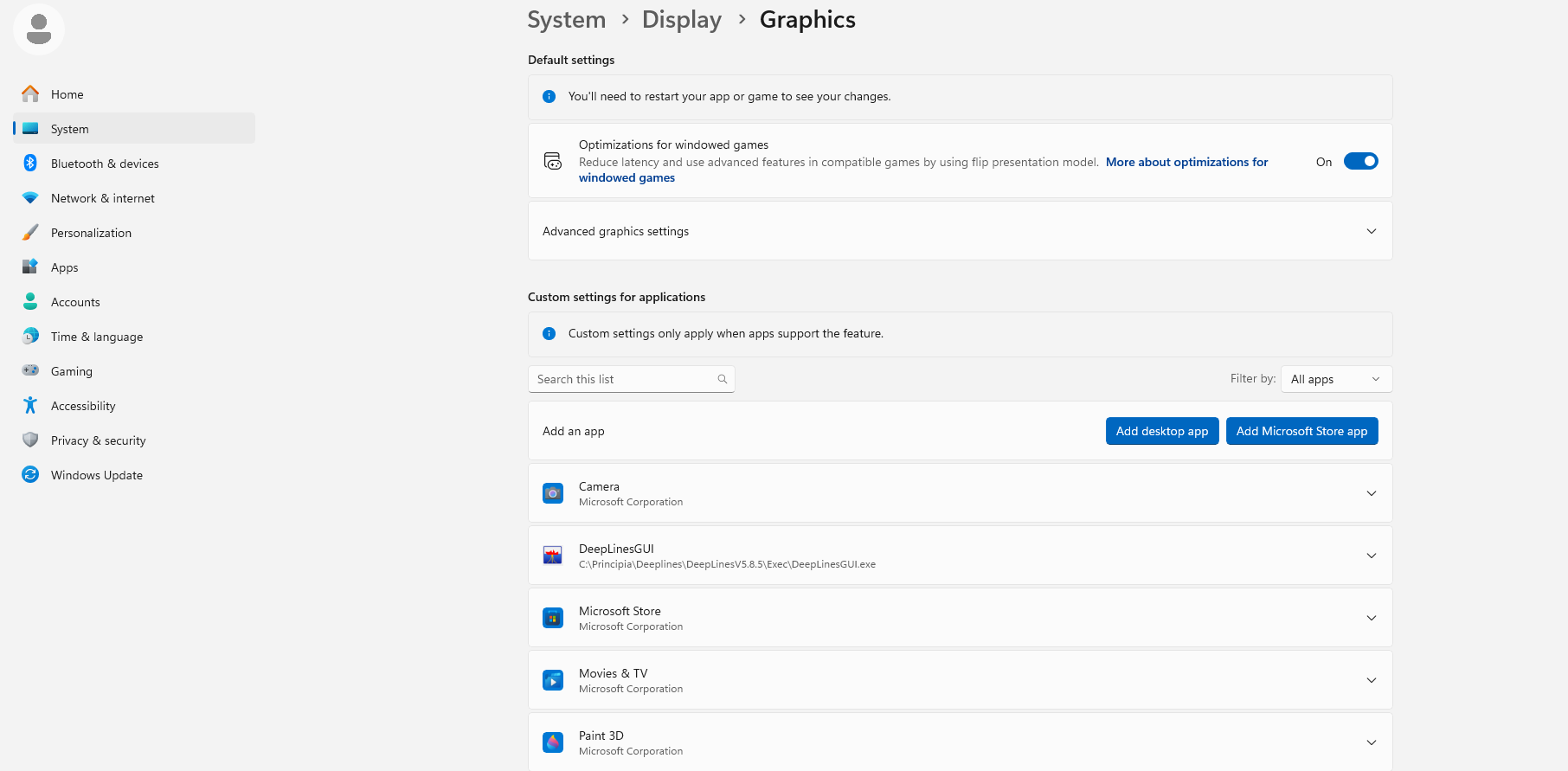
Figure 2 : Step 1.
- Click on DeepLinesGUI and choose High Performance option (Figure 3).
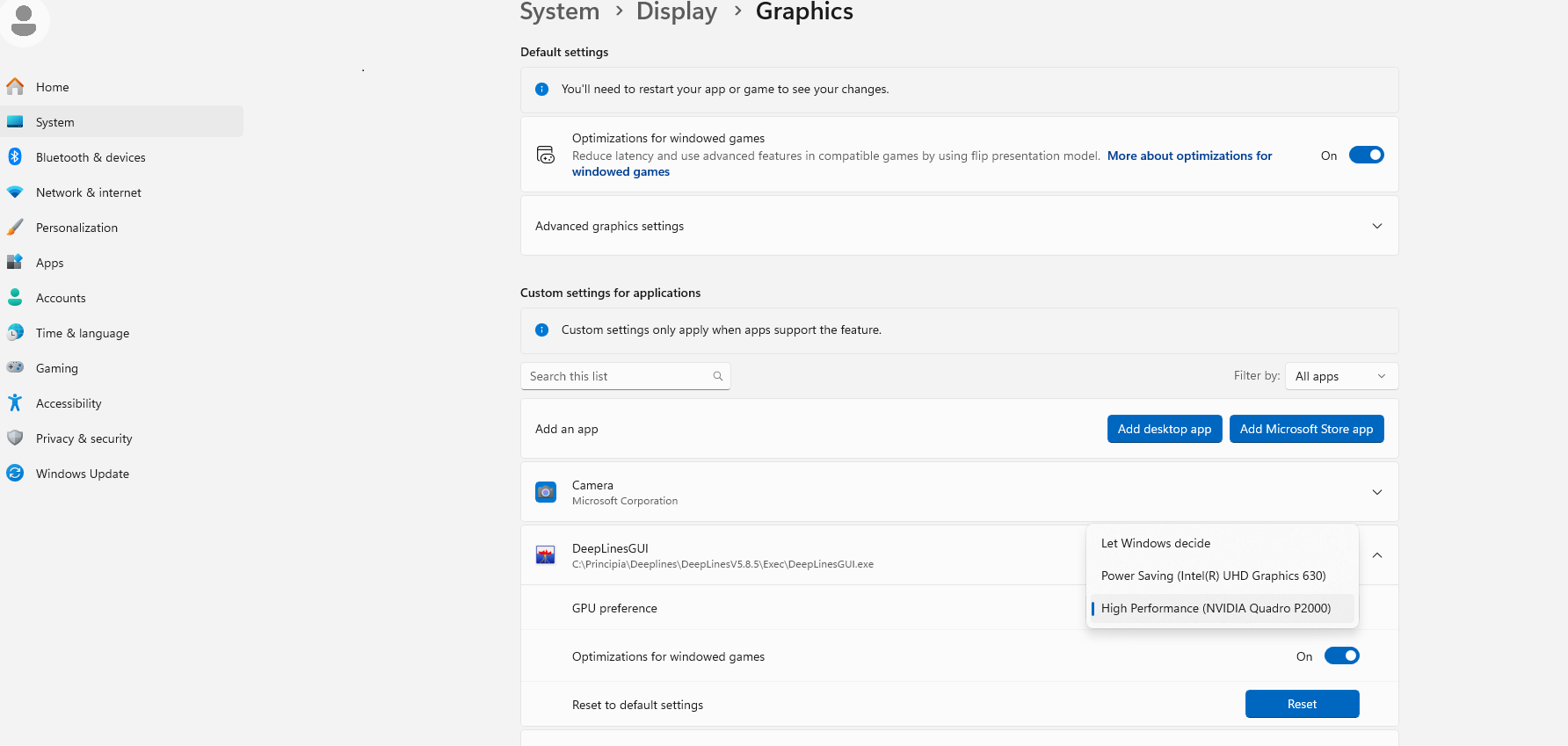
Figure 3 : Step 2.
